Audio Editing Tools
Last updated: October 12, 2026 · Written by the Pitch Detectors Editorial Team
These free audio editing tools trim, merge, boost, normalize, reverse, and loop audio directly in your browser. Open a file, edit with millisecond precision, and export the result — no downloads, no sign-up, and your audio never leaves your device.
Audio Trimmer
Cut and trim audio files. Set start and end points to extract the perfect clip.
Audio Merger
Combine multiple audio files into one. Merge songs, podcasts, or voice recordings.
Volume Booster
Increase or decrease audio volume. Amplify quiet recordings or reduce loud ones.
Speed Changer
Change audio playback speed without affecting pitch. Speed up or slow down.
Audio Normalizer
Normalize audio levels for consistent volume across your files.
Audio Reverser
Reverse audio files for creative effects or to discover hidden messages.
Loop Generator
Create seamless audio loops for music production and background tracks.
Key Takeaways
- 7 free tools: trimmer, merger, volume booster, speed changer, normalizer, reverser, and loop generator.
- 100% client-side — your files are decoded, edited, and re-encoded on your device, never uploaded.
- Input: MP3, WAV, OGG, M4A, FLAC, WebM. Output: MP3 or WAV, depending on the tool.
- Re-encoding MP3 to MP3 loses a little quality each time — keep a WAV master and export MP3 once at the end.
- Speed changes can preserve pitch (time-stretch) or shift it (resample) — pick the right mode for the job.
What Are Online Audio Editing Tools?
Definition: Online audio editing tools are browser-based utilities that cut, join, and transform audio files without installed software. They decode your file with the Web Audio API, apply the edit — trimming silence, merging tracks, or normalizing loudness — then re-encode the result for download, all on your device.
They cover the edits people need most often: removing dead air from a recording, joining podcast segments, lifting a quiet voice memo, slowing a solo to learn it, or building a seamless loop. Anything requiring multitrack mixing or effects still belongs in a DAW — these tools do one job each, instantly.
The 7 Tools in This Category
Audio Trimmer — cut any section from a file with millisecond precision. Set start and end points on the waveform to remove silence, extract a clip, or shorten a track.
Audio Merger — join multiple files into one: podcast segments, song chapters, or voice memos, in whatever order you arrange them.
Volume Booster — raise or lower overall gain by a fixed amount in dB. A quick rescue for recordings made too quietly.
Speed Changer — change tempo with or without pitch shift. Slow down solos to learn them, or speed up spoken audio.
Audio Normalizer — even out peak levels across files so a batch of clips plays at consistent volume.
Audio Reverser — flip audio backwards for creative effects or curiosity-driven listening.
Loop Generator — build seamless repeating loops for background tracks, beats, and game audio.
How to Choose the Right Tool
Match the tool to the task. Each of these opens in one click from the cards above.
| Your task | Use this tool |
|---|---|
| Remove silence, an intro, or an outro | Audio Trimmer |
| Join podcast segments or songs | Audio Merger |
| Recording is too quiet overall | Volume Booster |
| Loud and quiet parts need evening out | Audio Normalizer |
| Slow down a solo without changing pitch | Speed Changer |
| Create a backwards effect | Audio Reverser |
| Make a seamless background or beat loop | Loop Generator |
How Browser Audio Editing Works
When you drop a file into one of these tools, the browser decodes it with the Web Audio API's decodeAudioData into raw PCM samples held in memory. The edit — cutting a range, concatenating buffers, scaling gain — happens on those samples with plain arithmetic. The result is re-encoded (WAV directly, or MP3 through the browser's encoder) and offered as a download.
Two consequences follow. First, privacy: the file never touches a server, so sensitive recordings — interviews, unreleased music — stay on your machine. Second, limits: the whole file sits in RAM, so a three-hour 24-bit recording can exhaust a phone's memory while a laptop handles it easily.
Supported Formats and Limits
| Format | Support | Best for |
|---|---|---|
| MP3 | Input and output | Final sharing; small files |
| WAV | Input and output | Masters and multi-step edits (lossless) |
| OGG Vorbis | Input | Open-format web audio |
| M4A / AAC | Input | Apple ecosystem recordings |
| FLAC | Input | Lossless archiving at roughly half the size of WAV |
| WebM | Input | Browser and screen recordings |
Maximum file size varies with browser memory — long, high-resolution files may need a desktop browser.
The MP3 Re-Encoding Trap
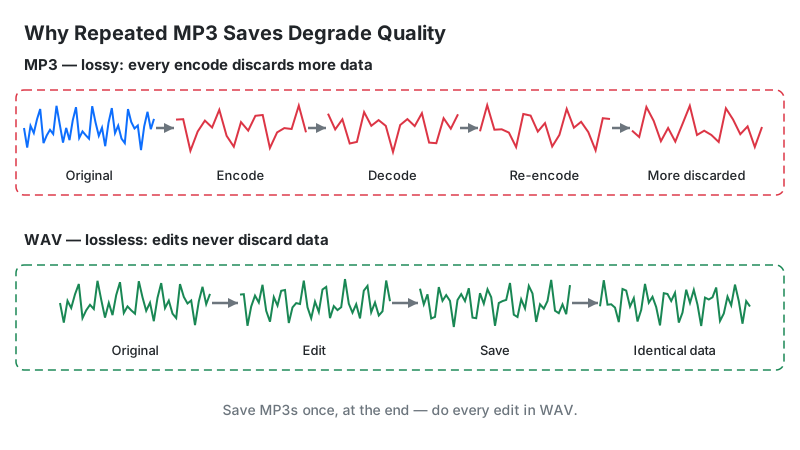
Every MP3 edit that exports back to MP3 pays a small quality tax. MP3 is a lossy codec: encoding discards audio data its psychoacoustic model deems inaudible. Editing decodes the MP3 to raw audio, applies your cut, then re-encodes — discarding another layer. One round trip is rarely audible; five or six stacked saves produce the smeared, watery artifacts engineers call generation loss.
The fix costs nothing: keep a WAV (or FLAC) master, do every edit from it, and export MP3 only once as the final step. If you only have the MP3, trim once and export once — avoid chains like trim → merge → boost → normalize, each saving a new MP3.
Peak Normalization vs. Loudness Normalization
Peak normalization and loudness normalization solve different problems, and mixing them up is the most common volume mistake in podcasting.
Peak normalization scales the whole file so its loudest sample hits a target like −1 dBFS. It prevents clipping, but two files peaking at the same level can still sound wildly different — a whispery interview and a compressed ad can both peak at −1 dBFS.
Loudness normalization instead targets perceived loudness in LUFS (Loudness Units relative to Full Scale, defined in ITU-R BS.1770). It measures how loud a file sounds to human ears across its full duration and applies a single gain correction. This is what platforms do: Spotify and YouTube normalize music to about −14 LUFS, and the podcast standard is −16 LUFS for stereo and −19 LUFS for mono (AES recommendation).
Practical rule: use the Audio Normalizer to even out peak levels between raw files, then finish podcast episodes with loudness normalization to −16 LUFS stereo in a dedicated tool or DAW before publishing — that is the level platforms expect.
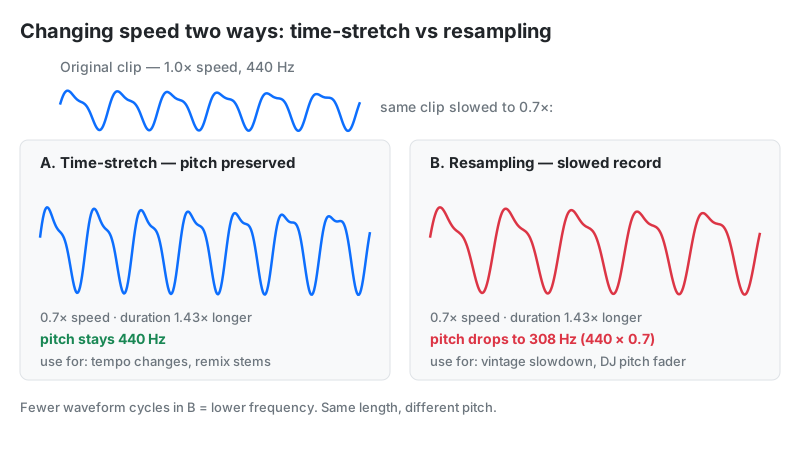
Speed Change: Time-Stretch vs. Resampling
Two different operations hide under "speed change," and picking the wrong one ruins the result.
Time-stretching changes tempo while holding pitch steady. Algorithms such as WSOLA or the phase vocoder slice audio into tiny grains and overlap them to fill or remove time without shifting frequency. Slow a guitar solo to 70% and every note stays in tune; speed an audiobook to 1.5× and the narrator keeps a natural voice.
Resampling changes speed and pitch together, like slowing a vinyl record — everything drops in pitch as it slows. It is the right choice for creative effects (tape-stop slowdowns, monster voices) and the wrong one for learning music or intelligible speech.
Rule of thumb: preserve pitch for learning and listening; allow pitch shift only for effects.
Who These Tools Are For
Podcasters trim dead air, merge segments, and normalize episodes to consistent volume before publishing.
Musicians slow down solos to learn them note-for-note and loop riffs for practice.
Content creators cut clips for shorts, build seamless background loops, and reverse audio for transitions.
Teachers and students get no-install classroom demos of waveforms, pitch, and loudness — no accounts, no setup.
Limitations
- No multitrack mixing. These tools edit one file at a time; layering tracks needs a DAW.
- No effects. There is no EQ, reverb, compression, or noise reduction here — only cuts, joins, gain, speed, and reversal.
- Memory-bounded. Files are decoded into RAM, so very long recordings may fail on phones.
- Generation loss. Repeated MP3-to-MP3 round trips degrade quality; keep a WAV master.
- Not mastering-grade. Loudness (LUFS) targeting for platform publishing still needs a dedicated tool or DAW.
Online Tools vs. Desktop Editors
Use the browser when the job is one edit; install software when the project keeps growing.
| These browser tools | Audacity | Ocenaudio | GarageBand | |
|---|---|---|---|---|
| Cost | Free | Free, open-source | Free | Free on Apple devices |
| Install | None | Download required | Download required | Preinstalled / App Store |
| Multitrack | No | Yes | Yes | Yes |
| Best for | One-click trims, merges, loops | Full free editing | Simple waveform editing | Music projects on Mac/iPhone |