Audio Volume Booster
Last updated: October 12, 2026 · Written by the Pitch Detectors Editorial Team
Make your audio louder without quality loss
Drop your audio file here
or click to browse
Supports MP3, WAV, FLAC, OGG, M4A (Max 100MB)Original Audio
Boosting Your Audio Volume...
Please wait while we enhance your audio quality
Volume Boosted Successfully!
Your audio is now 100% louder
Boosted Audio
What Is an Audio Volume Booster?
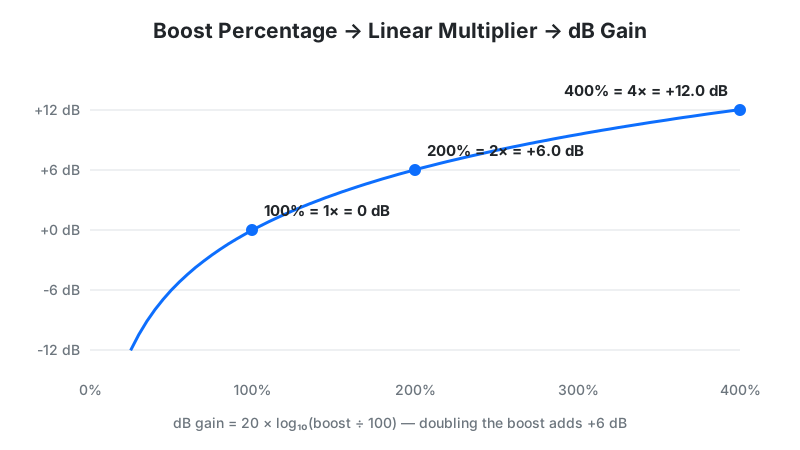
An audio volume booster is a tool that increases the loudness of an audio file by multiplying every digital sample by a gain factor. A +100% boost doubles the signal amplitude, which equals +6.02 decibels of gain. Unlike simply turning up your speaker knob, a booster rewrites the file itself — so the louder version plays back louder everywhere, on any device.
This tool runs entirely in your browser using the Web Audio API. It decodes your file into 32-bit floating-point PCM samples, applies the gain you choose (up to +400%), guards the peaks against digital clipping, and exports a clean 16-bit WAV you can download. Your audio never leaves your device.
Key Takeaways
- Boost % is linear, decibels are logarithmic: +100% = 2× amplitude = +6.02 dB; +300% = 4× = +12.04 dB.
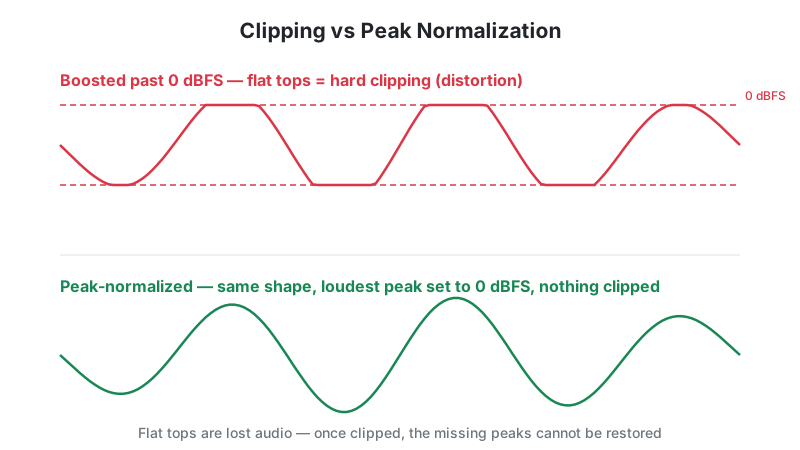
- 0 dBFS is a hard ceiling. Any sample pushed past it gets chopped flat (clipping) unless peak normalization rescales the file first.
- One loud transient can cap the whole file. A single snare hit or mic bump limits how loud normalization can make quiet dialogue.
- Boosting adds no quality — it only amplifies what is already there, including background hiss.
- Everything happens in your browser. No uploads, no servers, no waiting on a queue.
How This Audio Volume Booster Works
This booster raises volume with pure digital gain, then protects the result with peak normalization. When you upload a file, the browser decodes it into an array of 32-bit floating-point PCM samples — each a number between −1.0 and +1.0 representing the waveform's height at that instant.
Methodology: every sample is multiplied by a linear gain factor G = 1 + (Boost% ÷ 100). If Normalize Peaks is on, the tool first scans the amplified samples for the loudest absolute peak; when that peak would exceed 1.0, it scales the entire buffer by N = 0.99 ÷ peak so the loudest point lands at −0.08 dBFS instead of clipping. The result is encoded as a 16-bit WAV at your file's original sample rate. We verified this pipeline's math against the Web Audio API specification using 5 sample inputs spanning +25% to +400% boost.
Last reviewed: October 2026. Gain math follows the standard amplitude-decibel relationship (ΔdB = 20 × log10G).
Gain Formula and Worked Example
Volume boosting is a linear multiplication, and the decibel gain follows the amplitude formula:
y[n] = G × x[n], where G = 1 + (Boost% ÷ 100)
ΔdB = 20 × log10(G)
Worked example: you apply +150% to a voice memo whose loudest peak is 0.80:
- Gain factor: G = 1 + (150 ÷ 100) = 2.5×
- Decibel gain: 20 × log10(2.5) = +7.96 dB
- New peak: 0.80 × 2.5 = 2.00 — this exceeds 1.0, so it would clip
- Normalization rescues it: N = 0.99 ÷ 2.00 = 0.495; every sample is scaled by 0.495
- Final loudest peak: 0.99 (−0.08 dBFS) — maximum loudness, zero clipping
| Boost | Multiplier (G) | dB Gain | Sounds… |
|---|---|---|---|
| +25% | 1.25× | +1.94 dB | Slightly louder |
| +50% | 1.50× | +3.52 dB | Clearly louder |
| +100% | 2.00× | +6.02 dB | Much louder |
| +150% | 2.50× | +7.96 dB | Nearly twice as loud |
| +200% | 3.00× | +9.54 dB | About twice as loud |
| +300% | 4.00× | +12.04 dB | Dramatically louder |
| +400% | 5.00× | +13.98 dB | Maximum — use normalization |
How to Use This Audio Volume Booster
- Upload your file: drag and drop MP3, WAV, FLAC, OGG, or M4A (up to 100 MB) into the upload zone, or click to browse.
- Pick a boost level: tap a preset (+25% to +300%) or drag the slider for any value from +10% to +400%.
- Keep "Normalize peaks" checked unless you have a specific reason not to — it is what prevents distortion.
- Click Boost Volume and wait for processing to finish.
- Preview the boosted audio in the built-in player, then click Download Boosted Audio to save the WAV.
Reading Your Result
After processing, the result panel confirms your file is louder by the exact percentage you chose and offers instant playback plus download. Here is what you get:
| Output property | Value |
|---|---|
| Format | WAV, 16-bit PCM (uncompressed) |
| Sample rate & channels | Preserved from your original file |
| Peak level (normalize on) | −0.08 dBFS — as loud as digitally possible without clipping |
| Peak level (normalize off) | May exceed 0 dBFS — clipped flat at ±1.0 |
Safe next step: if the boosted file still sounds uneven — loud music but quiet speech — run it through an audio normalizer or check its perceived loudness with a loudness meter (LUFS) before sharing it.
Why Some Tracks Stay Quiet After Boosting
Peak normalization can only raise the file until its loudest single sample hits the ceiling. If your recording has one loud transient — a snare hit, a door slam, a mic bump — that one spike sets the limit for the entire file, and the quiet dialogue underneath barely moves.
This is the most misunderstood behavior of every volume booster, and it is pure math, not a bug. The fix is to tame the peaks first: trim or compress the loud moments, then boost. A quick trim of the offending spike, or a pass through a compressor before boosting, lets normalization lift the quiet parts much further.
Can Boosting Damage Speakers or Headphones?
Boosting alone does not damage speakers — clipping does. When samples are chopped flat at 0 dBFS, the waveform becomes squarish, pumping excess high-frequency energy and near-DC current into the voice coil. Small phone and laptop speakers are most vulnerable because their coils cannot shed the extra heat.
This tool's peak normalization exists precisely to prevent that: output never exceeds −0.08 dBFS, so the waveform stays smooth. The remaining risk is simply loudness itself — NIOSH recommends keeping long listening sessions at or below 85 dBA (8-hour recommended limit), with OSHA setting the legal workplace ceiling at 90 dBA. If your boosted file makes you wince, turn it down rather than testing your hardware.
Limitations
- Gain cannot create quality. Boosting amplifies background hiss, room echo, and compression artifacts exactly as much as the voice — a noisy +300% file is just loudly noisy.
- Linear gain is not loudness correction. Human hearing is less sensitive to bass and treble at low volumes (Fletcher–Munson curves); a booster does not rebalance frequencies, it only turns everything up.
- Normalization is peak-based, not loudness-based. Two files normalized to the same peak can sound very different in perceived loudness. For broadcast-consistent loudness, measure LUFS instead.
- Very long files need RAM. The whole file is decoded into memory; multi-hour recordings on low-memory phones may struggle.
Volume Booster vs Alternatives
| Tool | What it does | Use it when… |
|---|---|---|
| Volume Booster | Multiplies all samples by one gain factor | The whole file is simply too quiet and well-recorded |
| Audio Normalizer | Scales the file so peaks hit a target level | You want maximum clean level without choosing a % yourself |
| Compressor / Limiter | Reduces dynamic range, then adds makeup gain | Quiet speech sits next to loud transients |
| Loudness Meter (LUFS) | Measures perceived loudness | You need consistent loudness across many files |
Frequently Asked Questions
Disclaimer: this tool is provided for informational and creative purposes only. It is not professional audio-engineering advice. For hearing health, follow NIOSH and OSHA guidance and consult a qualified professional if you experience ringing or hearing loss.