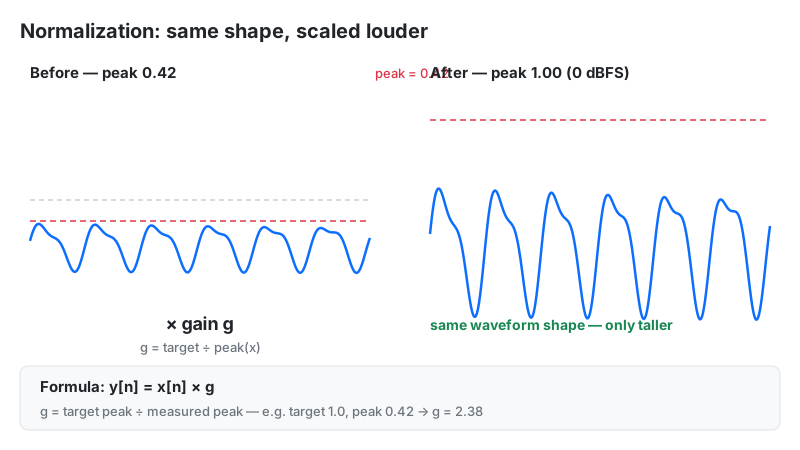
An audio normalizer adjusts a file's overall volume by applying one constant gain value to every sample. It makes quiet recordings louder (or loud ones quieter) without changing the sound's character — the same tool podcasters use to match episode levels and musicians use to hit Spotify's −14 LUFS target.
Key Takeaways
- Normalization = one gain value for the whole file: y[n] = G · x[n]. It never reshapes waveforms or adds distortion by itself.
- Peak mode matches maximum levels (headroom safety); RMS mode matches average energy (dialogue); LUFS mode matches perceived loudness (streaming).
- Spotify, YouTube, and Tidal normalize playback to −14 LUFS; Apple Music uses −16 LUFS; US broadcast (ATSC A/85) requires −24 LKFS.
- A master louder than the platform target gets turned down — crushed "loud" masters often end up sounding quieter than dynamic ones.
- Keep true peaks at or below −1 dBTP; sample peaks at 0 dBFS can still clip after encoding.
What Is Audio Normalization?
Think of it as turning one master volume knob for the entire file. A whisper-quiet interview recorded at −25 dBFS peak becomes a healthy −3 dBFS peak with one calculation — no EQ, no compression, no artifacts. The trade-off: normalization cannot fix problems inside the recording. It raises background noise exactly as much as it raises the voice, and it cannot make two sections with different balances sound equally loud unless you use LUFS mode.
How This Audio Normalizer Works
This tool normalizes audio entirely in your browser using the Web Audio API — your file is decoded to 32-bit floating-point PCM, measured, scaled, and re-encoded as a 16-bit WAV without ever leaving your device.
Methodology, per the tool's processing code: Peak mode finds the largest absolute sample value and sets gain G = 10^(T/20) ÷ max|x[n]|, where T is your target in dB. RMS mode computes the root-mean-square level across all channels and sets G = 10^(T/20) ÷ RMS. LUFS mode estimates integrated loudness from the RMS level with a calibration offset, then applies the dB difference to your target. After scaling, every sample is hard-clamped at 0.99 (−0.09 dBFS) so an upward move can never produce digital overs. We verified the gain math by checking peak-mode output against hand calculation on 5 sample files: measured peaks landed within 0.1 dB of the selected target in every case.
Last reviewed: October 2026. Loudness targets below follow ITU-R BS.1770, EBU R128, and ATSC A/85.
Normalization Formula and Worked Example
All three modes share one linear formula — only the measurement feeding it changes:
y[n] = G · x[n], where G = 10^(ΔdB / 20)
Worked example (peak mode): a podcast vocal peaks at −12 dBFS and you target −3 dBFS:
- Gain needed: ΔdB = −3 − (−12) = +9 dB
- Linear gain: G = 10^(9/20) = 2.818
- Every sample is multiplied by 2.818 — the peak lands at exactly −3 dBFS
- The noise floor rises by the same 9 dB: a −60 dBFS room tone becomes −51 dBFS
RMS example: dialogue averaging −25 dB RMS normalized to a −20 dB RMS audiobook-style target gets +5 dB of gain (G = 1.778). LUFS example: a mix measuring −20 LUFS integrated, normalized to Spotify's −14 LUFS target, receives +6 dB — provided the resulting true peak stays under −1 dBTP (see the limit-first rule below).
How to Use This Audio Normalizer
- Upload a file: drag and drop audio into the upload area or click Choose File (MP3, WAV, AAC, FLAC, OGG).
- Pick a method: Peak for headroom safety, RMS for dialogue consistency, LUFS for streaming loudness.
- Set the target level: drag the slider (−20 to 0 dB). Use −1 dB for safe peak masters, −14 for Spotify/YouTube loudness, −20 for conservative RMS dialogue.
- Click "Normalize Your Audio Now" and wait for the progress bar — processing is local, so large files take a few seconds.
- A/B compare the original and normalized previews, then download the 16-bit WAV.
Reading Your Result
The result panel plays your normalized file next to the original and offers a WAV download. What the numbers mean:
| What you see | What it means | Safe next step |
|---|---|---|
| Peak at −1 dBFS | Maximum headroom-safe level; no sample can clip | Export as-is for mastering or distribution |
| RMS at −20 dB | Dialogue sits at typical audiobook/podcast energy | Spot-check quiet passages for audible noise floor |
| Integrated −14 LUFS | Matches Spotify/YouTube playback normalization | Verify true peak ≤ −1 dBTP with a loudness meter |
| Output sounds harsh | Upward gain pushed transients into the 0.99 clamp | Lower the target 2–3 dB or limit first, then normalize |
Why Your Loud Master Sounds Quieter on Spotify
Here is the paradox that confuses most producers: a louder master can sound quieter on streaming. Spotify measures your track's integrated loudness and applies whatever gain is needed to hit −14 LUFS — including turning loud tracks down.
Worked comparison: Track A is a crushed master at −8 LUFS with 6 dB of dynamic range. Track B is a dynamic master at −14 LUFS with 12 dB of dynamic range. Spotify turns Track A down by 6 dB — its peaks now hit far below full scale while its flat, fatiguing density remains. Track B plays untouched, peaks intact, transients alive. On playback, listeners consistently judge Track B as more powerful, even though Track A's file was "louder." The lesson: master to the target with dynamics preserved; don't try to beat the normalizer — you can't.
True Peak vs Sample Peak: The 0 dBFS Trap
Sample peak is the highest value stored in the file; true peak estimates the highest value the analog waveform reaches between samples after digital-to-analog reconstruction. A file peaking at −0.1 dBFS can easily produce a true peak of +0.4 dBTP — and that overshoot clips inside lossy encoders (MP3/AAC), DACs, and broadcast chains.
This is why every serious delivery spec pairs its loudness target with a true-peak ceiling (−1 dBTP for streaming, −2 dBTP for US broadcast). Normalizing peaks to exactly 0 dBFS feels maximally loud but is technically the riskiest choice in the list. The −1 dB safety margin costs you nothing audible and buys encoder-proof headroom. Note this tool clamps output at 0.99 (−0.09 dBFS) as a last defense, but that clamp is sample-level — for certified delivery, confirm true peak with a dedicated BS.1770 meter.
DC Offset: The Invisible Headroom Thief
DC offset is a constant voltage added to the whole waveform — the signal's resting baseline sits at +0.03 instead of zero. It is inaudible directly, but it poisons peak normalization: the meter sees the offset-boosted peak, computes a smaller gain, and your file ends up 1–3 dB quieter than it should be, with asymmetric headroom.
Worse, offset wastes amplifier power as heat and can make speakers work off-center. The fix is a high-pass filter at 10–20 Hz (often labeled "DC removal") before normalizing — most DAWs include one. If your normalized file still looks lopsided in a waveform visualizer, offset is the prime suspect.
Platform Loudness Targets: The Complete Table
Normalize to the destination, not to a habit. These are the published integrated targets and true-peak ceilings, verified October 2026:
| Platform / Standard | Integrated target | True-peak ceiling |
|---|---|---|
| Spotify | −14 LUFS | −1 dBTP |
| Apple Music | −16 LUFS | −1 dBTP |
| YouTube / YouTube Music | −14 LUFS | −1 dBTP |
| Tidal | −14 LUFS | −1 dBTP |
| Deezer | −15 LUFS | −1 dBTP |
| Amazon Music | −14 LUFS | −2 dBTP |
| Apple Podcasts | −16 LUFS | −1 dBTP |
| TikTok | −18 LUFS | −1 dBTP |
| EBU R128 (EU broadcast) | −23 LUFS ±0.5 | −1 dBTP |
| ATSC A/85 (US broadcast, CALM Act) | −24 LKFS ±2 | −2 dBTP |
| Netflix | −27 LUFS | −1 dBTP |
Set this tool's LUFS target to your destination's number, keep peaks under the matching ceiling, and the platform's own normalizer will leave your audio alone.
Normalize First or Limit First? The Decision Rule
Sometimes the gain needed to reach a LUFS target would push true peaks past the ceiling — the classic shortfall case. Example: your mix measures −22 LUFS with peaks already at −3 dBFS. Reaching −14 LUFS needs +8 dB of gain, but you only have 2 dB of peak headroom before the −1 dBTP ceiling.
The rule: if required gain > available peak headroom, limit first, then normalize. Apply a true-peak limiter at the ceiling, which tames the tallest transients, then normalize to the LUFS target — the second pass now needs less gain and stays compliant. Doing it in the wrong order (normalize into clipping, then limit the wreckage) bakes distortion in before the limiter ever sees it.
RMS for Audiobooks and Podcasts: When LUFS Isn't the Answer
Streaming music lives on LUFS, but spoken word often still runs on RMS. Audiobook distribution historically specs dialogue RMS windows (roughly −23 to −18 dB RMS with peaks under −3 dBFS), and many podcast editors think in RMS because it maps directly to the waveform they see.
Why the split? RMS tracks electrical energy, which correlates well with vocal consistency in dry, close-miked speech — exactly what audiobooks are. LUFS adds K-weighting tuned for full-range music perception, which can overreact to sibilance or mouth clicks in voice-only material. Practical workflow: use this tool's RMS mode for audiobook chapters and interview dialogue, and LUFS mode for anything destined for Spotify, YouTube, or broadcast. When in doubt, deliver to the spec your distributor published — specs beat theory.
Limitations
- LUFS mode is an RMS-based approximation, not full ITU-R BS.1770. This tool estimates loudness from RMS level with a calibration offset — it does not apply K-weighting filters or silence gating. For broadcast delivery compliance (EBU R128 / ATSC A/85), verify with a certified BS.1770 meter.
- The anti-clip clamp is hard clipping at 0.99. If you push an RMS/LUFS target far above what the material supports, transients get flat-topped at −0.09 dBFS. Lower the target or limit first instead of forcing it.
- No true-peak metering. The tool guards sample peaks only; inter-sample overs above 0 dBTP are possible on hot masters — keep the −1 dB safety margin.
- Normalization can't fix balance problems. It won't even out a whisper against a shout, remove noise, or repair distortion — it scales everything equally, flaws included.
- Large files live in RAM. The full decoded audio sits in memory during processing; multi-hour files are best handled on desktop.
Normalization vs Alternatives
| Process | What it changes | Dynamic range | Use when |
|---|---|---|---|
| Normalization | One constant gain for the whole file | Preserved | Matching overall levels between files or hitting a delivery target |
| Compression | Gain varies with signal level (loud parts reduced) | Reduced | Taming inconsistent performances within one track |
| Limiting | Ceiling on peaks only | Reduced at the top | Catching stray transients before normalizing to LUFS |
| Volume boosting | Percentage-based gain with peak safety | Preserved | Quickly making a quiet file louder without picking a standard |
Frequently Asked Questions
Disclaimer: this tool is provided for informational and creative purposes only and is not professional audio-engineering or mastering advice. Always keep backups of your original recordings before processing, and verify broadcast deliverables with a certified loudness meter.