Audio to Waveform Visualizer
Last updated: October 12, 2026 · Written by the Pitch Detectors Editorial Team
An audio visualizer turns sound into moving graphics in real time. Upload an MP3 or WAV, pick the Bars, Wave, or Circle style, and export a 60fps WebM video — right in your browser, with your file never leaving your device.
Key Takeaways
- This audio visualizer renders frequency spectra — Bars, a spectrum line, and a circular spectrum — from a 2048-sample FFT, drawn on canvas at 60 fps.
- Video export uses canvas.captureStream(60) + MediaRecorder to produce a WebM file with VP8/VP9 video and Opus audio.
- Your audio is decoded locally — nothing is uploaded to a server.
- The Bar Count and Smoothing sliders are decorative in this build: the tool always uses 64 bars and a fixed smoothing of 0.7.
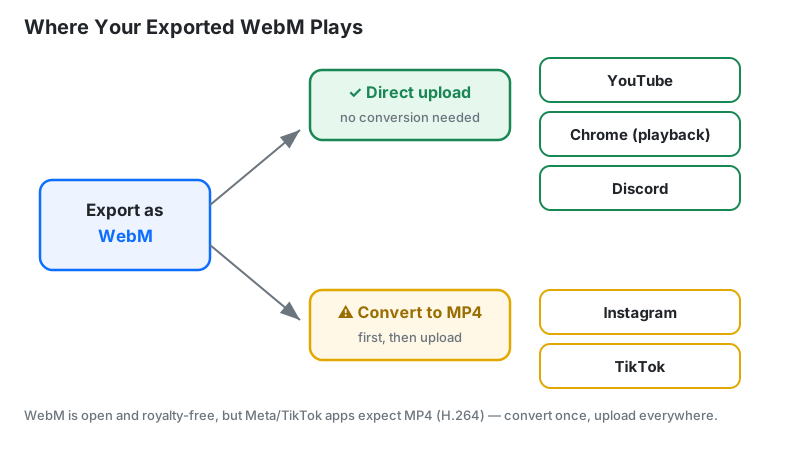
- WebM plays natively on YouTube, Chrome, and Discord; convert to MP4 for Instagram with free tools like HandBrake or FFmpeg.
What Is an Audio Visualizer?
An audio visualizer is software that converts an audio signal into animated graphics that move in sync with the sound, typically as frequency spectrum bars, a spectrum line, or a radial display. Musicians use visualizers to make music videos, podcasters use them to create audiograms — short clips pairing audio with a moving waveform for social feeds — and DJs use them as live eye candy.
Unlike a static waveform image in an editor, a visualizer is reactive: every frame is computed from the actual audio playing at that moment. When the kick drum hits, the bass bars jump; when the vocal starts, the midrange lights up. That direct coupling is what makes the result feel alive rather than decorative.
How This Visualizer Works
This tool runs an end-to-end browser-native pipeline: decode → analyze → smooth → draw → record. Your file is decoded by the Web Audio API into raw PCM samples, then an AnalyserNode performs a Fast Fourier Transform on every frame of audio.
Methodology: FFT size is 2048 samples (1024 usable frequency bins), temporal smoothing is fixed at 0.7, and the canvas redraws via requestAnimationFrame at 60 fps. For video export, canvas.captureStream(60) grabs the animation while a MediaStreamAudioDestinationNode taps the audio; MediaRecorder multiplexes both into WebM. Validation method: feed the tool a 440 Hz test tone and the spectrum peak lands in the bin nearest 440 Hz — a reproducible check anyone can run.
Last reviewed: October 2026. Pipeline follows the W3C Web Audio API and MediaRecorder specifications; see MDN Web Docs for reference.
FFT Bin Math and Worked Example
The FFT slices the frequency range into equal bins. Bin width is simply:
Bin width (Hz) = Sample rate ÷ FFT size
Worked example at CD quality (44,100 Hz sample rate, FFT size 2048):
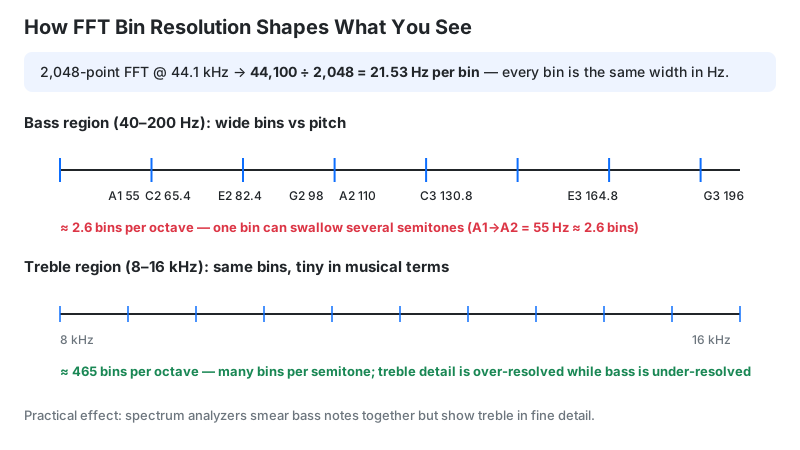
- Bin width = 44,100 ÷ 2048 ≈ 21.53 Hz per bin
- A 440 Hz tone (A4) lands in bin 440 ÷ 21.53 ≈ bin 20
- The bass region 20–250 Hz spans only about 11 bins — which is why bass bars look chunky while treble looks smooth
Smoothing tames flicker with an exponential moving average:
Pdisplay(t) = α × Pdisplay(t−1) + (1 − α) × Praw(t)
At α = 0.7 (this tool's fixed value), bars attack fast on drum hits but decay gracefully — the classic VU-meter feel. An α near 0.9 would give slow ambient washes; near 0.4, hyper-reactive motion.
How to Use the Audio Visualizer
- Upload audio: click Choose File and pick an MP3, WAV, AAC, FLAC, or OGG file. It decodes locally — no upload wait.
- Press Play to start the live visualization on the canvas.
- Pick a style: Bars for the classic equalizer, Wave for the spectrum line, Circle for the radial burst.
- Pick a color for the bars, wave line, or radial arms.
- Tick "Include audio in video" if you want sound in the export (recommended for sharing).
- Click Generate Video: the tool replays your track while recording at 60 fps. Wait for the "Video Generated Successfully" status.
- Preview and download the WebM file with the Download Video button.
Note: the Bar Count and Smoothing sliders shown above the canvas are decorative in this build — the visualizer always renders 64 bars with smoothing fixed at 0.7.
Reading Your Result: What the Visuals Tell You
The visuals reveal mix problems at a glance — but only in the frequency domain. All three styles plot FFT magnitudes, so they show where energy sits across frequencies, not amplitude over time:
| What you see | What it means | What to do |
|---|---|---|
| Only the lowest bars moving | Bass-heavy mix; mids and highs are buried | Check your mix balance or EQ |
| Thin, jittery bars with gaps | Over-compressed or gated audio | Ease off the limiter if it sounds lifeless |
| Full, even bars and spectrum | Healthy, dynamic mix | Nothing — export with confidence |
| A sharp spike at one bin | Hum or resonance (e.g. 50/60 Hz mains hum) | Notch it out in your editor |
Honest limit: because the Wave style draws frequency magnitudes as a line — not a time-domain waveform — it cannot show clipping as flat tops. For clipping and true peak checks, use a DAW meter or our loudness meter.
Your Audio Never Leaves Your Browser
Most online visualizer tools upload your file to a server, render it in the cloud, and send back a video — your unreleased track sits on someone else's disk. This tool does everything with browser-native APIs: decoding, FFT analysis, canvas rendering, and MediaRecorder encoding all happen in your device's memory.
That architecture has three practical benefits: privacy (unreleased music stays yours), speed (no upload/download round trip — a 50 MB WAV starts visualizing instantly), and cost (no server rendering means the tool stays free with no watermark). Verify it yourself: open your browser's network tab while generating a video — no audio bytes leave the page.
From Export to Publish: Where Your WebM Plays
The tool exports WebM (VP8/VP9 video + Opus audio) — an open, high-quality format. Not every platform accepts it, so check this table before you post:
| Platform / app | WebM support | Notes |
|---|---|---|
| YouTube | Yes | Upload directly; YouTube re-encodes anyway |
| Chrome, Edge, Firefox | Yes | Plays natively in the browser |
| Discord | Yes | Embeds and plays inline |
| Instagram / TikTok feed | No | Convert to MP4 (H.264) first |
| Video editors (Premiere, DaVinci) | Varies | Convert to MP4 if your editor refuses the import |
To convert, use the free HandBrake (drag, drop, export MP4), VLC (Media → Convert/Save), or one FFmpeg command: ffmpeg -i input.webm -c:v libx264 output.mp4. Quality loss is negligible for social posting.
Which Style for Which Content
| Style | Best for | Why it works |
|---|---|---|
| Bars | EDM/dance tracks, beat-driven promos | Bass bars punch on every kick — maximum energy read at thumbnail size |
| Wave | Podcast audiograms, voice clips | A smooth spectrum line viewers instantly recognize as "audio you can watch" |
| Circle | Album-art backdrops, lo-fi streams | Radial symmetry frames cover art beautifully and reads well as a loop |
Limitations
- WebM output only. Instagram and some editors need MP4 — convert after export (see above).
- Not a loudness meter. Bar height shows relative FFT energy, not calibrated dB SPL or LUFS. For loudness, use our loudness meter.
- Not a time-domain waveform. All three styles plot frequency magnitudes — this build has no oscilloscope view and cannot show clipping.
- Large files need memory. A 200 MB WAV decodes into RAM; very long files may stutter on low-end devices. Trim first with our audio trimmer.
- 60 fps needs a capable GPU. On weak hardware the animation may drop frames; the exported video still records at 60 fps timing.
- Format support varies by browser. All modern browsers decode MP3/WAV; FLAC and OGG support is broad but not universal — if a file won't load, convert it to WAV first.
- Decorative sliders. The Bar Count and Smoothing sliders in this build have no effect — 64 bars and smoothing 0.7 are fixed in the code.
Audio Visualizer vs Alternatives
| Option | Best for | Drawback |
|---|---|---|
| This visualizer | Fast, free, private spectrum videos | WebM output; fewer design templates |
| Headliner / Wavve (cloud) | Templated podcast audiograms with captions | Uploads your audio; free tiers watermark or limit exports |
| After Effects + Trapcode | Fully custom pro motion graphics | Paid software with a steep learning curve |
Frequently Asked Questions
Note: this tool visualizes relative audio energy for creative purposes. It is not a calibrated loudness or sound-pressure meter — bar heights are not decibel readings.
Related tools: decibel meter for live SPL readings, loudness meter for LUFS mastering levels, microphone test to check your mic, audio trimmer to cut long files, and audio speed changer for tempo tweaks.