An audio trimmer is a tool that cuts a selected time range out of an audio file and saves it as a new clip. This one runs entirely in your browser: set a start and end point, preview the selection on a visual waveform, and download the result as a 16-bit WAV file. Nothing is uploaded, and there is no second lossy compression pass.
Key Takeaways
- Trimming happens at exact sample numbers: at 44.1 kHz one sample lasts 22.7 µs, so "30.00 s" is sample 1,323,000 — precision is physical, not approximate.
- This tool decodes the full file once and exports an uncompressed 16-bit WAV, so there is no MP3-to-MP3 generational loss.
- Cutting at a non-zero amplitude point causes an audible click. Cut near zero-crossings or add a 2–5 ms micro-fade.
- MP3's native frame is 1152 samples (~26 ms), so stream-copy trimmers can only cut on frame boundaries.
- iPhone ringtones must be 30 seconds or shorter and in AAC (.m4r) format — trim here, then convert and rename.
What Is an Audio Trimmer?
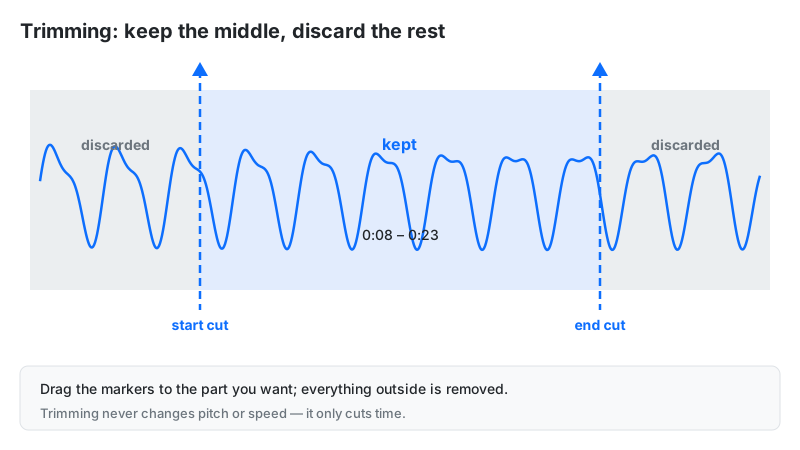
Trimming is the simplest edit in audio production and one of the most common. Podcasters cut pre-roll silence and false starts, musicians isolate drum breaks for samplers, and everyone has made a ringtone. Unlike fading (which changes volume) or normalizing (which changes level), trimming only changes duration: the kept samples are copied bit-for-bit from the decoded original.
How This Audio Trimmer Works
This tool trims audio entirely in your browser using the Web Audio API — decoding, cutting, and WAV encoding all happen on your device, with no server involved.
Methodology, per the tool's processing code: the uploaded file is decoded into 32-bit floating-point PCM at its native sample rate. Your start and end times are converted to sample indices with n = ⌊t × fs⌋. A new buffer is created and the samples in the range are copied channel by channel, untouched. A preview is played directly from the selection, and the download is encoded as a standard 44-byte-header, 16-bit PCM RIFF WAV. We checked the WAV writer's header fields against the RIFF specification and verified the sample-index math against hand calculation for five start/end pairs.
Trimming Formula and Worked Example
Every trim is two index calculations and one copy:
nstart = ⌊tstart × fs⌋, nend = ⌊tend × fs⌋, y[m] = x[m + nstart]
Worked example: trim a podcast from 1:15.50 to 2:00.00 at 44.1 kHz:
- Start in seconds: 1 × 60 + 15.50 = 75.50 s → nstart = ⌊75.50 × 44100⌋ = 3,329,550
- End in seconds: 120.00 s → nend = ⌊120 × 44100⌋ = 5,292,000
- Clip length: 5,292,000 − 3,329,550 = 1,962,450 samples (44.50 s)
- Export size (stereo 16-bit WAV): 1,962,450 × 2 channels × 2 bytes ≈ 7.8 MB
Sample precision is why the seconds inputs accept one decimal place: at 44.1 kHz, 0.1 s is 4,410 samples — plenty fine for dialogue, though frame-level beats for music should use the waveform view to land on beat transients.
How to Use This Audio Trimmer
- Upload a file: drag audio onto the upload area or click Choose File (MP3, WAV, OGG, M4A, FLAC).
- Inspect the waveform: the tool draws the full file so you can see silence, entrances, and transients before choosing points.
- Set start and end: type minutes and seconds (decimals allowed, e.g. 0:14.2 to 1:45.8), or click Full to select everything.
- Click Preview to hear exactly the selected range — the preview plays only that segment.
- Click Trim Audio, then Download to save your lossless 16-bit WAV clip. Use Trim Another to start over.
Why Trimmed Clips Click — and How to Fix It
Clicks at a cut point have a physical cause: if the waveform is cut while it is far from zero amplitude, playback jumps from that value to silence (or to the next clip's value) in a single sample step. A sudden vertical jump contains energy at every frequency at once, which your ear hears as a sharp click or pop.
Two standard fixes exist. Zero-crossing cuts place the boundary exactly where the waveform crosses the zero line, so the jump is tiny. Micro-fades (2–5 ms fades at the very start and end) ramp the edge to zero so smoothly that no click can form. Be honest about this tool's behavior: it performs raw sample-boundary cuts with no automatic fade, so for the cleanest result, zoom into the waveform and place your start and end points where the wave sits near the center line. If a clip still clicks, re-export with the cut nudged a few milliseconds toward a quiet moment.
Formats, Quality, and the No-Recompression Rule
Most free online cutters decode your MP3, cut it, and re-encode it as MP3 — running the psychoacoustic compressor a second time and smearing transients. This tool skips that pass entirely: decode once to full-resolution PCM, cut, and write 16-bit WAV. The result cannot be better than the source, but it is exactly as good as the source.
| Trimming method | How it cuts | Quality cost | Cut accuracy |
|---|---|---|---|
| This tool (full decode → WAV) | Decodes to PCM, copies the sample range, writes 16-bit WAV | None — one decode, no re-encode | Single-sample (~23 µs at 44.1 kHz) |
| Cloud MP3 → MP3 cutter | Decodes, cuts, re-encodes to MP3 | Generational loss — two lossy passes | Single-sample, but degraded |
| Stream-copy (e.g. FFmpeg -c copy) | Copies compressed frames without decoding | None | MP3 frame boundaries only (~26 ms steps) |
The trade-off is file size: uncompressed WAV is about 10 MB per stereo minute at 44.1 kHz. If you need a small file for sharing, convert the trimmed WAV to MP3 or AAC in a separate step — one lossy encode at the end beats two.
Making a Ringtone From a Song
Ringtones are the most-searched reason people trim audio, and the iPhone rules are strict: a custom iPhone ringtone must be 30 seconds or shorter, in AAC format, with a .m4r extension (per Macworld's ringtone guide). Longer clips are rejected when you sync.
Workflow: trim the catchiest 25–30 seconds of the song here, download the WAV, convert it to AAC/M4A in any converter or DAW, and rename the extension from .m4a to .m4r. Then drag it onto your iPhone in Finder (macOS) or iTunes (Windows) — it appears under Settings → Sounds & Haptics → Ringtone. Android phones generally accept MP3 or OGG ringtones of any reasonable length, so the trimmed WAV converted to MP3 works directly.
Trimming vs Alternatives
| Process | What it changes | Use when |
|---|---|---|
| Trimming | Removes audio before/after the selection | Extracting a clip, ringtone, or sample from a longer file |
| Merging | Joins two or more files end to end | Combining intro, main, and outro recordings into one track |
| Normalizing | Scales overall loudness to a target | Matching levels between clips before or after trimming |
| Volume boosting | Raises gain by a percentage | Making a quiet trimmed clip louder without picking a standard |
| Speed changing | Alters tempo and duration | Fitting a clip to a video timeline or slowing speech for study |
Limitations
- No automatic zero-crossing snap or fades. Cuts are raw sample boundaries — place cut points near the waveform's center line for click-free results.
- WAV export only. The download is always 16-bit PCM WAV; for MP3 or AAC, convert afterward in another app.
- Seconds inputs cap at 59 per the widget design; use the minutes field for selections longer than a minute.
- Everything lives in RAM. The full decoded file sits in memory, so multi-hour recordings are best trimmed on a desktop browser.
- Preview plays the selection only. What you hear in Preview is the exact range that will be exported — no more, no less.
Frequently Asked Questions
Disclaimer: this tool is provided for informational and creative purposes only and is not professional audio-engineering advice. Always keep backups of your original recordings before editing, and only trim audio you own or have the right to use.