A microphone test checks that your mic works and shows your live input level — before a call, stream, or recording. Press Start Mic Test and speak normally: this free online tool draws a real-time level bar from your microphone signal, so you can confirm the signal path, set a healthy gain, and spot a dead mic or background noise in seconds. The bar is a relative 0–100% level, not calibrated decibels.
Key Takeaways
- This microphone test confirms signal and level, not studio-grade mic quality.
- The bar shows a relative 0–100% level, not calibrated dBFS numbers.
- Healthy speech on this meter: the bar fills roughly the middle two-thirds, flicking toward red only on loud peaks.
- Silence should read near zero — a bouncing bar with no speech means background noise.
- Turn off auto gain control (AGC) before testing, or the meter dances on its own.
What Is a Microphone Test?
A microphone test is a quick check that your microphone captures audio correctly: it verifies the browser can access the mic, displays your live input level, and exposes issues like clipping, low gain, or background noise. It takes thirty seconds and prevents the classic disaster of recording an hour of audio with a dead or distorted mic.
This microphone test uses the getUserMedia API to open your default recording device and visualizes the live stream as a level bar. Nothing is recorded, stored, or transmitted — the audio never leaves your browser. Speak, watch the bar, run the 3-second silence check below: you will know exactly where your setup stands.
How This Microphone Test Works
Clicking Start Mic Test asks the browser for microphone permission, then routes the live stream through an analyser node. This microphone test maps the signal's frequency-spectrum average to a 0–100% bar — a relative level indicator, not a dBFS measurement. Each update averages the analyser's frequency bins (each scaled 0–255) and sets the bar width from that average.
That honesty matters: the bar cannot tell you peaks sit at −12 dBFS, and it has no clip detector. What it does tell you: a frozen bar at 0% means no signal reaches the browser; a bar pinned at 100% means the input is very hot; steady movement with speech means the whole chain works. The green–yellow–red gradient is a fixed color scale — louder signals simply fill further into the red zone.
Validation you can repeat: clap once loudly — the bar should spike near 100% and fall back. If it never moves, the wrong input device is selected or permission is blocked. Stop Test releases the microphone so no other app is blocked.
Last reviewed: October 2026. Capture follows the W3C getUserMedia specification; see MDN Web Docs for reference.
Target Levels and Worked Example
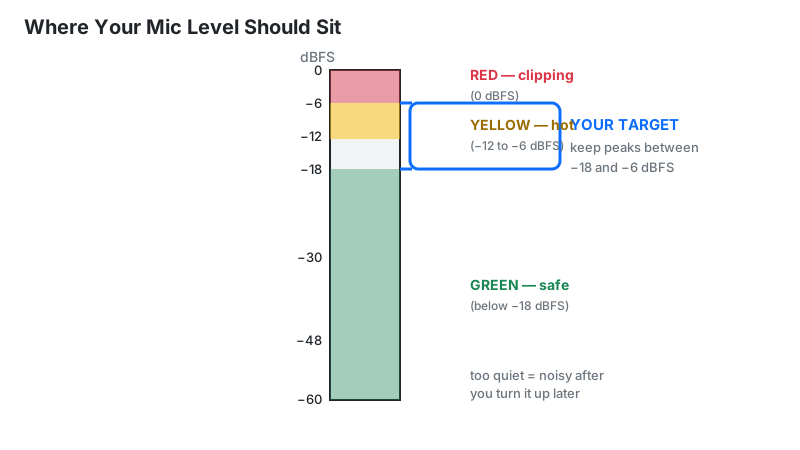
Digital audio measures level in dBFS (decibels relative to full scale), where 0 dBFS is the clipping ceiling and everything else is negative. Your targets:
| Use case | Peak target | Average target |
|---|---|---|
| Music/podcast recording | −12 to −6 dBFS | ≈ −18 dBFS |
| Live streaming | −12 to −6 dBFS | −18 to −12 dBFS |
| Video calls | −20 to −12 dBFS | ≈ −20 dBFS |
This page's bar is relative, so translate those targets into bar zones: speech filling the green-to-yellow middle (roughly 40–80% of the bar) is the healthy zone; flicking into red on loud peaks is fine; pinned in the red means too hot; below about 20% while speaking normally means too quiet. These zones are approximate — the bar is not calibrated — but they map the dBFS targets onto what you actually see.
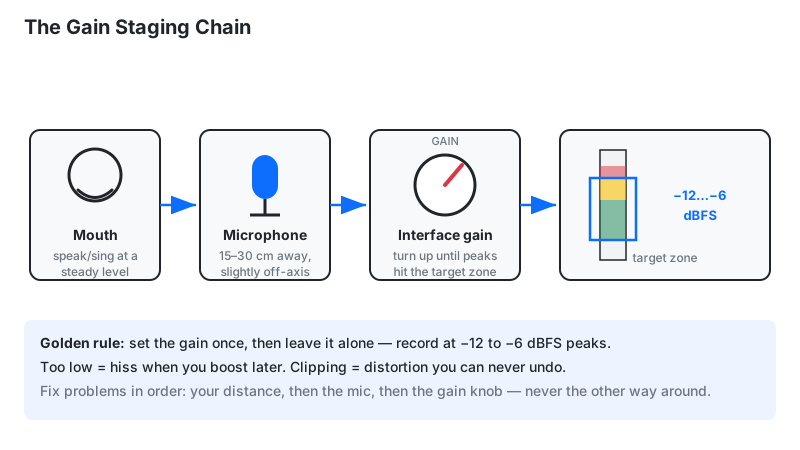
Worked example: your meter peaks at −24 dBFS while speaking normally — 12 dB too quiet for recording. Since +6 dB ≈ double the digital amplitude, you need roughly +12 dB of gain (about 4× amplitude). Raise the OS input level or interface gain until peaks kiss −12 to −6 dBFS, leaving headroom for laughs and emphasis.
How to Test Your Microphone
- Click Start Mic Test and choose Allow when the browser asks for microphone access.
- Speak normally — count "one, two, three" at your real recording volume and distance.
- Watch the bar: healthy speech fills the middle of the bar, flicking into yellow on louder syllables.
- Run the 3-second silence test: stop talking and stay quiet — the bar should fall near zero.
- Adjust gain in your OS sound settings or interface until both checks pass.
- Click Stop Test to release the microphone when done.
Reading Your Result: What the Meter Tells You
| What you see | What it means | What to do |
|---|---|---|
| Bar in the middle two-thirds | Healthy gain staging | Nothing — you're ready |
| Pinned near 100% (deep in the red zone) | Input far too hot — almost certainly clipping | Lower input gain or move the mic back |
| Stays below ~20% while speaking | Gain far too low | Raise OS/interface gain; check you're on the right device |
| Bounces above 20% in silence | Background noise (fan, hum, room) | Kill noise sources; move closer to the mic |
| Bar never moves at all | Wrong device or blocked permission | See the troubleshooting checklist below |
Microphone Not Working? Troubleshooting Checklist
Work through these in order — they solve nearly every "mic not working" case:
- Permission: click the lock/camera icon in the address bar and set microphone to Allow, then reload.
- Default device: in OS sound settings, confirm your intended mic is the default recording device (not "default communications device" only).
- Browser device picker: some browsers let sites pick a device — check the site's mic selector if one appears.
- App conflicts: close Zoom/Teams/Discord — another app may be holding the mic exclusively.
- Hardware: unplug and replug USB mics; for XLR mics confirm +48V phantom power is on (condensers need it; USB mics never do).
- Privacy switches: many laptops have a physical mic mute key or shutter — check it isn't engaged.
AGC: The Setting That Silently Ruins Your Levels
Automatic gain control (AGC) is an OS or app feature that rides your mic gain up and down to "normalize" speech. It makes testing meaningless — the bar dances on its own — and it pumps background noise up during pauses. Turn it off before any serious test or recording: Windows → Sound settings → Input → disable "Automatically adjust microphone settings"/"audio enhancements"; macOS → no system AGC, but check individual apps (Zoom's "automatically adjust volume" is a common culprit); Chrome → chrome://settings/content/microphone has no AGC toggle, so fix it at the OS level.
Meter Looks Fine but Callers Can't Hear You
If this test shows a healthy bar but people on calls say you're quiet, the problem sits downstream of the browser. Meeting apps run their own processing: Zoom's "automatically adjust microphone volume," Teams' noise suppression, Discord's attenuation. Fix in order: turn off auto-volume inside the call app, set the call app's input to the same device you tested here, then re-test with a short voice memo in the app itself. A browser microphone test only verifies what reaches the browser — it cannot see what Zoom does next.
Limitations
- Checks function, not fidelity. The test confirms signal path and levels — it cannot measure frequency response, self-noise specs, or "studio quality."
- Relative bar, not dBFS. The 0–100% bar comes from a frequency-spectrum average — it cannot report exact peak values or detect true clipping.
- Browser processing applies. Some browsers apply noise suppression to getUserMedia streams; for a raw check, prefer Chrome/Edge with OS enhancements off.
- One device at a time. The test uses your default input; to check a second mic, switch the OS default and re-run.
- No recording. Nothing is captured or stored — if you need a sample, record a voice memo separately after the level check.
Microphone Types Compared
| Type | Best for | Notes |
|---|---|---|
| USB mic | Beginners, calls, streaming | Plug-and-play; no phantom power or interface needed |
| XLR + interface | Podcasts, music, pro streaming | Best quality ceiling; needs interface and +48V for condensers |
| Built-in laptop mic | Emergency calls only | Noisy, distant, picks up keyboard — test will show it |
| Headset mic | Gaming, calls | Close placement helps, but thin sound for recording |
Frequently Asked Questions
Note: this tool checks microphone function and input levels only. It does not record, store, or transmit your audio.
Related tools: decibel meter for room noise levels, loudness meter for LUFS mastering, waveform visualizer to see recordings, and pitch detector for vocal pitch tracking.