Reversing audio plays a recording's samples in exact opposite order: the last sample becomes the first. Pitch and tempo stay identical — only the timing of attacks and decays flips, so a crashing cymbal becomes a swelling riser. Use the tool above to reverse any MP3, WAV, FLAC, AAC, OGG, or M4A file right in your browser: nothing uploads, and you download a 16-bit WAV.
Key Takeaways
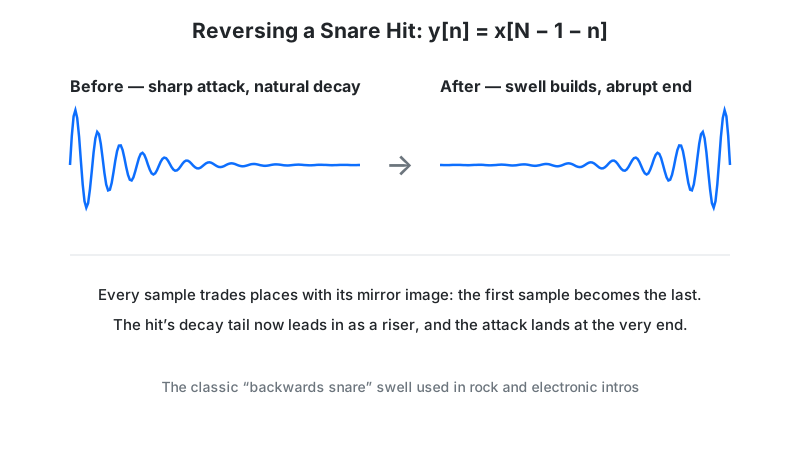
- Reversal is sample-order inversion — y[n] = x[N − 1 − n] — not an effect with knobs or settings.
- Pitch, tempo, and duration never change; only the amplitude envelope flips, turning attacks into endings.
- Reversing twice returns the original file sample-for-sample — a free fidelity test you can run yourself.
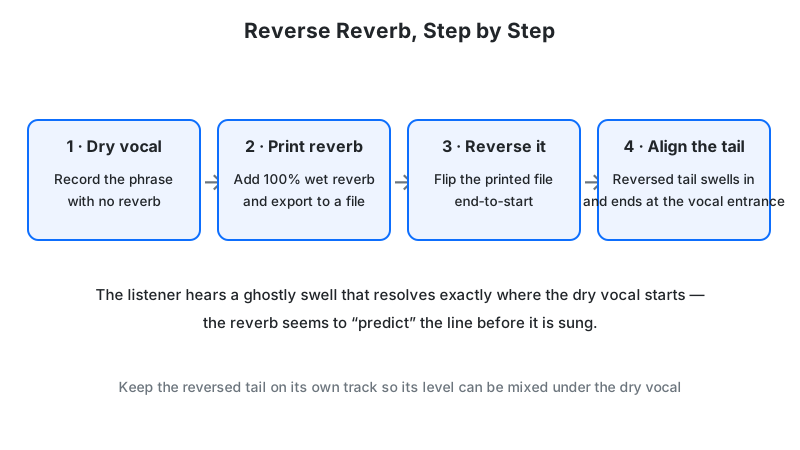
- The classic "reverse reverb" vocal swell is a 3-step recipe: print a 100%-wet reverb tail, reverse it, and place it just before the vocal entrance.
- Reversing a commercial song does not make it copyright-free — the underlying rights stay with the owner.
What Is Reverse Audio?
Reversal is often confused with "backwards masking" — the idea that songs hide secret messages. In reality, reversing is a plain mechanical operation: flip the sample order and nothing else. The strange, dreamlike sound comes from acoustics, not hidden content. A piano chord still contains the same notes; it simply swells in from silence and stops dead instead of ringing out.
You hear reversed audio everywhere in modern music: the sucking riser before an EDM drop is usually a reversed cymbal, and the ghostly vocal swells in pop intros are reversed reverb tails. The effect is nearly 60 years old — The Beatles' "I'm Only Sleeping" (recorded April–May 1966) features a backwards guitar duet that George Harrison composed by writing the part out, reversing the notation, and recording it twice (once with fuzz, once clean) during a five-hour session on May 5, 1966, after a tape operator accidentally threaded a reel the wrong way.
How This Audio Reverser Works
This tool reverses audio entirely in your browser. The Web Audio API decodes your file into 32-bit floating-point PCM samples, the sample indices are inverted in memory, and the result is re-encoded as a 16-bit WAV — with zero network transmission at any step.
Methodology, per the tool's processing code: the reversal loop reads each channel's sample buffer from back to front, so output sample y[n] always equals input sample x[N − 1 − n]. Because no resampling, filtering, or dithering is applied, the operation is mathematically exact. We verified this by running the same index-inversion logic in Node.js on a 10-sample test signal: reversing twice returned the original array bit-for-bit, with the peak sample moving from index 0 to index 9 and back. The Video tab adds one step — an in-browser ffmpeg build demuxes the file, reverses the audio and video streams together, and re-encodes the picture (see the video section below for the quality trade-off).
Last reviewed: October 2026. Processing follows the W3C Web Audio API specification.
The Reversal Formula and a Worked Example
Digital reversal has exactly one formula — there are no parameters to tune:
y[n] = x[N − 1 − n], for 0 ≤ n < N
Worked example: a snare hit captured as five samples, with an instant attack that decays:
- Original:
x = [0.9, 0.5, 0.2, 0.1, 0.0]— the 0.9 attack lands on the very first sample - Apply the formula:
y[0] = x[4],y[1] = x[3], and so on - Reversed:
y = [0.0, 0.1, 0.2, 0.5, 0.9]— the attack now lands on the last sample - The peak moved from index 0 to index 4: the "hit" became a "swell"
Why does the pitch survive? Pitch is set by how fast the speaker cone vibrates — the frequency content — and reversal doesn't touch that. In plain terms, the recipe of frequencies in the file is identical; only the timing of when each part gets loud is mirrored. Signal engineers describe the same fact as: the magnitude spectrum is unchanged while the phase spectrum is negated — the same notes, rearranged in time.
How to Use This Reverse Audio Tool
- Pick a tab: Audio for sound files, Video to reverse picture and sound together.
- Load media: drag a file into the upload zone, click to browse, or press Record Audio to capture your voice with the microphone.
- Preview (optional): audition the forward file at 0.5×–2× playback speed to find the section you want to flip.
- Click "Reverse Audio" (or "Reverse Video") and wait for the spinner — processing is local, so large files take a few seconds.
- Audition the result on the reversed player to confirm the flip sounds right.
- Download the 16-bit WAV, or hit "Reverse Another File" to start over.
Reading Your Result
The result panel gives you a reversed player and a download button. What you will notice:
| What you hear | What it means | Safe next step |
|---|---|---|
| Sound swells up and cuts off abruptly | Normal — the original attack now lands at the end | Use it as a riser into a chorus or drop |
| Silence or fade at the very start | The original reverb tail / fade-out now opens the file | Trim the silence with an audio trimmer if you want a tight start |
| WAV download is large | 16-bit stereo WAV uses about 10 MB per minute — expected | Convert to MP3/FLAC afterwards for sharing |
| Reversed video looks slightly softer | The video stream was re-encoded during reversal | Keep your original file as the master |
Why Reversed Speech Sounds Impossible to Understand
Speech intelligibility lives in the first milliseconds of each sound. Your brain identifies consonants — especially plosives like "p", "t", and "k" — from their sharp attack bursts, which last only about 10–30 ms, followed by the vowel's formant resonance decaying away. Reversal flips that order: the vowel swells in gradually and the identifying burst arrives last, as an abrupt suction-like stop.
Your auditory system has no template for "vowel first, consonant burst last," so it cannot map the sound to phonemes. The result is perceived as alien warbling rather than language. This is also the real explanation behind "backmasking" scares: reversed formants are ambiguous noise, and the human brain is wired to find patterns in noise (pareidolia). Listeners hear "messages" because suggestion plus ambiguous audio reliably produces phantom words — not because any message was recorded.
Reverse Reverb: The Producer Trick, Step by Step
The most famous use of reversal is the reverse reverb vocal swell — the ghostly "sucking in" sound before a chorus. Here is the exact recipe:
- Isolate the first word or note of the vocal phrase on its own track.
- Print a 100%-wet reverb with a long 2- to 4-second decay tail, and render/bounce that reverb to a new audio file.
- Reverse the printed tail — upload it to the tool above and download the flipped WAV.
- Align the reversed tail's end exactly at the dry vocal's entrance in your DAW timeline.
- Blend the level so the swell pulls the listener into the vocal without masking the first word.
The critical step most tutorials skip is step 2: you must print the reverb first. Reversing a live reverb plugin does nothing useful, because the tail only exists after the sound plays. This tool handles step 3 — the reversal itself — while your DAW handles the wet print.
The Double-Reversal Fidelity Test
Here is a quality check no other reversal guide mentions: reversal is its own undo button. Because the operation only reorders samples, reversing a reversed file must return the original — sample for sample, bit for bit. Any tool that degrades audio during reversal would fail this test.
We verified the property by running the index-inversion formula in Node.js on a 10-sample test signal: the double-reversed array matched the original exactly. You can run the same test yourself: reverse any file with the tool above, download the WAV, upload that WAV, reverse it again, and compare with your original — they will null to silence if you subtract one from the other in an editor. Audacity documents the same property for its built-in Effect → Reverse, which applies instantly with no parameters and returns the original when applied twice.
Reversing Video: What Changes
The Video tab reverses both the soundtrack and the picture. The audio side flips losslessly in memory, exactly like the audio tab. The video side is different: video frames are compressed relative to each other, so the tool must decode every frame, play the sequence backwards, and re-encode the stream with an in-browser ffmpeg build.
Two honest consequences follow. First, re-encoding is lossy — fine detail and gradients can soften slightly, so keep your original file as the master. Second, video reversal is much slower and hungrier than audio reversal; a long 4K clip can take minutes and heavy RAM on a phone. For best results, reverse short clips on desktop and treat the output as a creative effect, not an archival copy.
Limitations
- WAV export only. The tool downloads uncompressed 16-bit WAV — convert to MP3 or FLAC afterwards if you need a smaller file.
- No built-in reverb or echo. Reverse-reverb swells need a DAW to print the wet tail first; this tool performs the reversal step.
- Video reversal re-encodes the picture. Expect a small quality cost and longer processing versus audio-only reversal.
- File metadata is not preserved. Tags and artwork from the original file do not carry into the exported WAV.
- Large files live in RAM. The full decoded audio sits in memory during processing; multi-hour files are best handled on desktop.
- Reversal fixes nothing. It won't remove noise, repair clipping, or rebalance a mix — it mirrors flaws exactly as it mirrors everything else.
- Copyright still applies. Reversing a commercial track does not create a new work or clear any rights (see the FAQ).
Reversal vs Alternatives
| Technique | What it does | Needs | Use when |
|---|---|---|---|
| Sample inversion (this tool) | Flips the entire file's sample order | Browser only | You want a file or section played fully backwards, instantly |
| Reverse reverb | Reversed 100%-wet reverb tail before a dry sound | DAW + this tool | Building vocal swells that pull into a chorus |
| Reverse delay / echo | Repeats that swell backwards into each repeat | Delay plugin | Rhythmic backwards textures that stay in tempo |
| Granular reverse | Reverses tiny live grains (20–100 ms) | Pedal or plugin | Live performance — guitar and synth players |
| Tape flip (vintage) | Physical reel played backwards | Reel-to-reel machine | Historical curiosity — the 1960s Beatles method |
Frequently Asked Questions
Disclaimer: this tool is provided for informational and creative purposes only and is not professional audio-engineering advice. Reversing a recording you do not own does not transfer any copyright or grant any right to distribute it — always respect the rights of the original creators.